Install from Shopify Admin
Install Launch Lock, then open it from Shopify Admin. The app opens in its own browser tab, not inside the Admin page.
Install the app
Section titled “Install the app”From the Shopify App Store
Section titled “From the Shopify App Store”Install on the Shopify App Store
- Open the listing, then click Install.
- Review the permissions and click Install app.
Shopify adds the app to the store. Setup runs when you install. Checkout blocking stays off until you turn it on in Settings.
From an install link
Section titled “From an install link”If K2 Digital sent you a link:
- Open it while you are logged into the correct store.
- Click Install and confirm the permissions screen.
Open Launch Lock
Section titled “Open Launch Lock”- In Shopify Admin, go to Apps.
- Click Launch Lock.
The app opens in a new browser tab at https://launch-lock.k2.digital/.
The first screen is Rule sets, with the Setup card. See Quickstart.
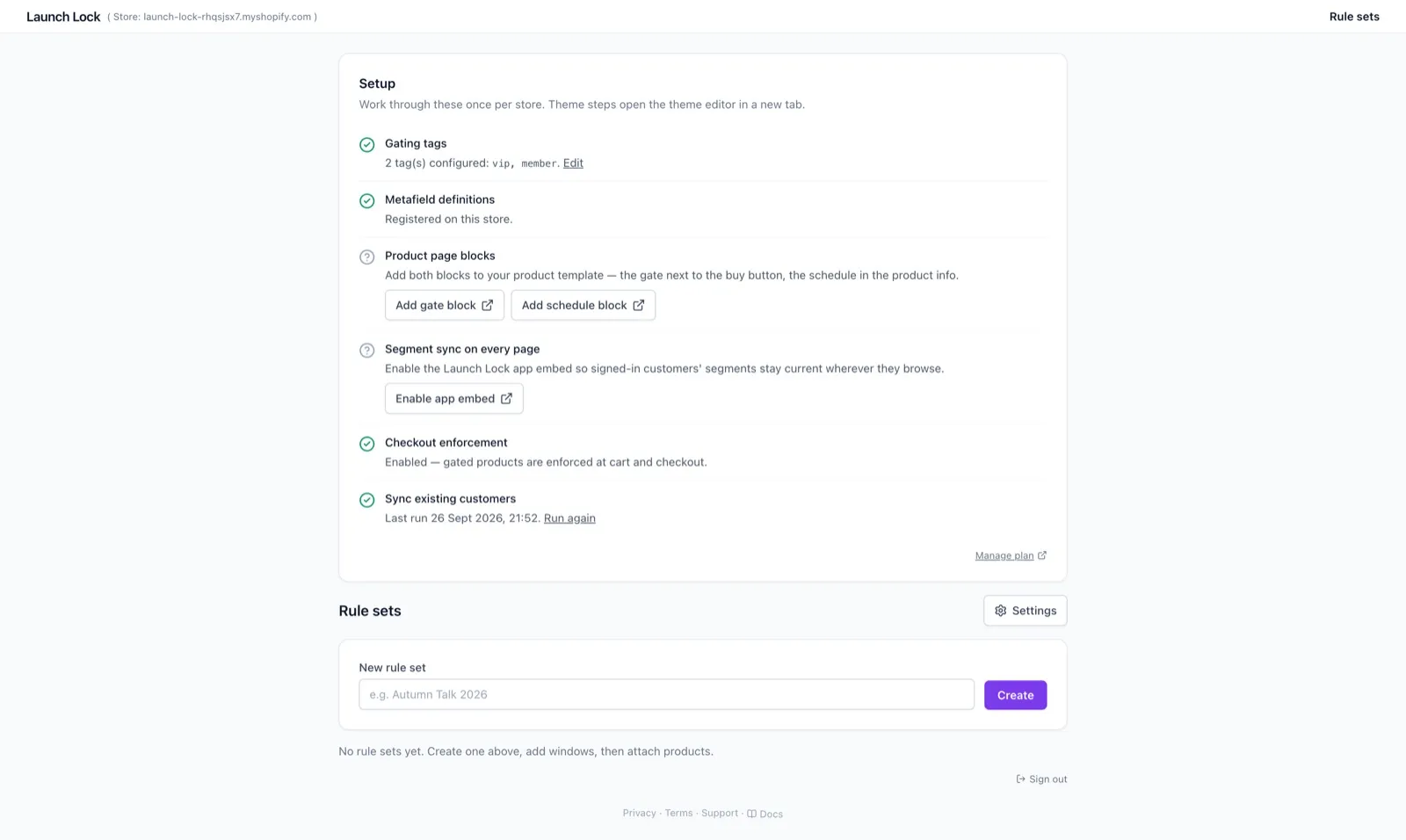
Launch Lock opens in its own browser tab. The Setup card is the first thing to work through.
If you have not approved a plan yet, Shopify shows its plan page before the app opens. Approve the plan, then open Apps → Launch Lock again. The price and any trial are the ones on that page and on the App Store listing. See Billing.
Session
Section titled “Session”The staff browser stays signed in for about 24 hours. If you see Sign in required, go back to Apps → Launch Lock in the store you mean to edit. Signing in again does not delete rule sets.
Launch Lock is tied to the store you opened it from. Always start from that store’s Admin.
Install on the Shopify App Store
- Quickstart
- Settings
- Troubleshooting — plan redirect and sign-in