
Rule sets
A rule set is one schedule applied to the products you attach. The product stays public. Only purchase is limited.
Open Rule sets, type a name, and click Create. Or open an existing name in the list.
Duplicate copies windows, messages, and the schedule. It does not copy products.
Basics
Section titled “Basics”| Field | What it does |
|---|---|
| Name | Shown only in the app. Customers do not see it. |
| Require sign-in to buy | Logged-out customers cannot buy. They see your sign-in message. |
| Max per order | Most units of this gate in one order. Empty means no maximum. |
| Min per order | Fewest units in one order. Empty means no minimum. |
| Last day to buy | Optional store-local date. Purchase is allowed through the end of that day, store time. After that, everyone is blocked with the deadline message, even if a window is open. |
Checkout works in whole days. A clock time on the opening date is not enforced. Every window opens at midnight, store time.
The max and min apply to the whole order for everything that shares this gate.
- Attach the whole product to cap all of its variants together.
- Attach each variant on its own and that variant has its own limit. A variant rule replaces the product rule for that variant.
Windows
Section titled “Windows”Each window is a name, an Opens on date, and who may buy from that date.
Customer tags allowed are the gating tags. Tick every tag that may buy in that window. Launch Lock does not infer “gold and above”. If gold members may also buy when the member window opens, tick gold on the member window as well.
Signed-in customers without a tag is the public window: a logged-in customer who matches none of the tags. It is not anonymous checkout. Anonymous customers are covered only by Require sign-in to buy being off.
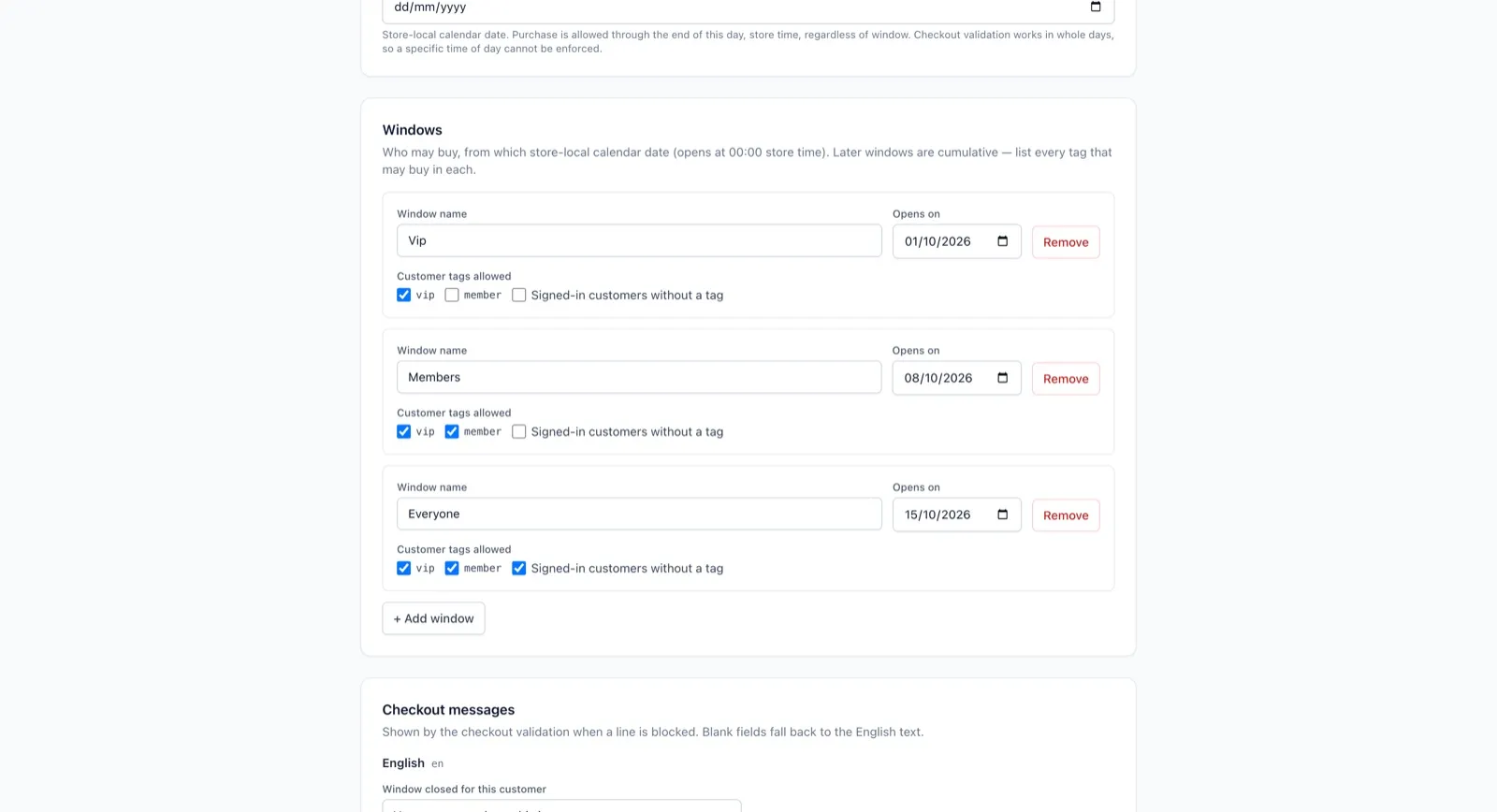
Each window has a name, an Opens on date, and the customer tags ticked. The public window also includes signed-in customers without a tag.
A window with no tags and that tick left off is rejected. Two windows may share a date. A last day to buy in the past is allowed: that is how you close sales for everyone.
Save & compile writes the rules onto every product on the rule set. The button row shows Last compiled.
Checkout messages
Section titled “Checkout messages”Shown when checkout blocks a line. There is one set of fields for English and one for each language in Settings → Storefront languages. The customer’s storefront language picks the set with the exact same code; any other language uses English. The product title is added in front of the message so the customer knows which line was blocked.
With one or two languages the fields sit side by side. With more, English stays on the left and each other language opens from its own panel. Leave a field blank and it uses the English text; the grey placeholder shows what will be used.
| Field | Default (English) |
|---|---|
| Window closed for this customer | You cannot purchase this item yet. |
| Sign-in required | Sign in to buy |
| Past deadline | Registration closed |
| Over max per order | You can buy at most {max} of this item. |
| Under min per order | You must buy at least {min} of this item. |
{max} and {min} are replaced with the numbers on the rule set. Leave them in the sentence.
The sign-in and deadline sentences are also the labels on the product-page gate. The “not yet” sentence is for checkout and for screen readers. It is not printed on the dimmed buy button. The schedule block is where you tell people when they can buy.
Product page schedule
Section titled “Product page schedule”Staff-written rows, separate from the window names. Seed from windows copies each window’s name into the English label and copies the date. Then edit the labels. Other languages start empty; a row with no label in a language shows its English label.
With more than two languages the rows show the English label and date, and each other language has a panel below listing the same rows for translation.
| Control | Effect |
|---|---|
| Show: always | The schedule is on the product page whenever the product is gated. |
| Show: only while locked | Hidden once this customer is allowed to buy. Still shown when they are logged out, too early, or past the deadline. |
| Extra paragraph | Optional text under the rows, one per language. Blank falls back to English. |
The heading and the date format are theme settings on the schedule block, not fields here. The default heading is Purchase schedule. See Theme editor.
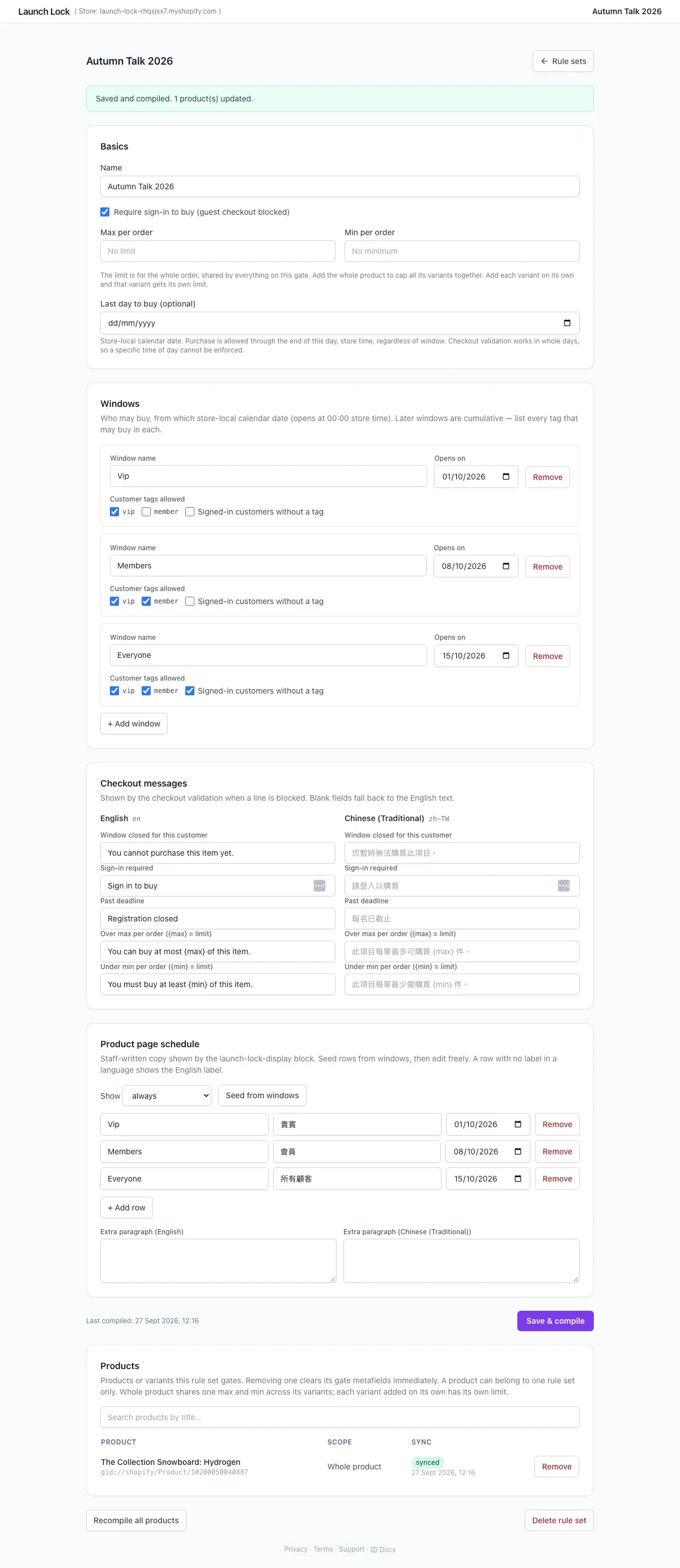
Product page schedule with Show set to always, and a label in English and 繁體中文 on each row.
Products
Section titled “Products”Search by title. Focusing the empty box lists the first products. Results stop at 10.
A product can belong to one rule set only. Remove clears that product immediately. Delete rule set clears every product on it, then deletes the rule set.
| Scope | Limit |
|---|---|
| Whole product | Max and min are shared across its variants. |
| One variant | That variant has its own max and min. |
Sync on the row should read synced. If it fails, read the error under the row and click Recompile all products. Use the same button if you edited the rule set and a product still shows the old schedule.
What the customer hits, in order
Section titled “What the customer hits, in order”- Sign-in, if you required it.
- Last day to buy, if you set one.
- A window whose date is today or earlier, and whose tags match the customer (or the no-tag tick).
- Max and min per order.
No matching window means they cannot buy yet. A product on no rule set is never gated.
Install on the Shopify App Store
- Theme editor
- Settings — turn checkout validation on after the product page looks right
- Troubleshooting