
Troubleshooting
Checks for the cases that come up while setting up a gate.
The buy button is still there
Section titled “The buy button is still there”The gate only hides buttons that match Buy button selector, inside the section that contains Launch Lock gate.
- Confirm the product is on a rule set and the row says synced.
- In the theme editor, select Launch Lock gate and set Preview state to Logged out. You should see the sign-in label.
- If the theme button is still active, set Buy button selector to that theme’s add-to-cart control. Leave the field empty to go back to the default.
- A selector that matches nothing leaves every button alone. The page still loads.
The dim and the hide are CSS in that section. A buy button in a different section of the page is not affected. Move the gate block into the section that contains the button.
A customer with the right tag is still blocked
Section titled “A customer with the right tag is still blocked”Checkout reads the customer’s segment list, which is their tags intersected with Gating tags. The tag on the customer and the tag in Settings must match exactly.
- Settings → Gating tags includes that tag. Save if you just added it.
- Run Sync customers now, or have that customer open any page of the store while signed in (the segment-sync embed has to be on).
- The window’s Opens on date is today or earlier, in the store’s time zone. Windows open at midnight, not at a clock time.
- If Require sign-in to buy is on, they must be signed in. A tag on a guest does not count.
- Checkout validation shows Disable validation, which means it is on. If the button says Enable validation, checkout is not enforcing anything — and it is also not the thing blocking them.
The product page can look correct and checkout can still be wrong for a few moments if the segment list has not refreshed. The app embed and Sync customers now are how you refresh it.
I removed the product and it is still gated
Section titled “I removed the product and it is still gated”Removing a product is supposed to clear it at once.
- On the rule set, confirm the product is gone from Products.
- Click Recompile all products.
- If it is already gone and still gated, add it again and remove it again.
Delete rule set clears every product on that set. Deleting the row in Shopify Admin by hand does not.
The schedule and the button disagree
Section titled “The schedule and the button disagree”Both blocks read the same rule set. If they differ:
- Show is only while locked, so an eligible customer sees a buy button and no schedule. That is the setting.
- The schedule heading and dates are theme settings. The row labels are on the rule set. Save & compile after editing the rows.
- Hard-refresh the product page. A variant with its own attachment uses that variant’s rules, not the product’s.
Checkout message names the product
Section titled “Checkout message names the product”Expected. The blocked line is reported on the cart, and the product title is placed in front of your message, because checkout cannot point at a single line on its own.
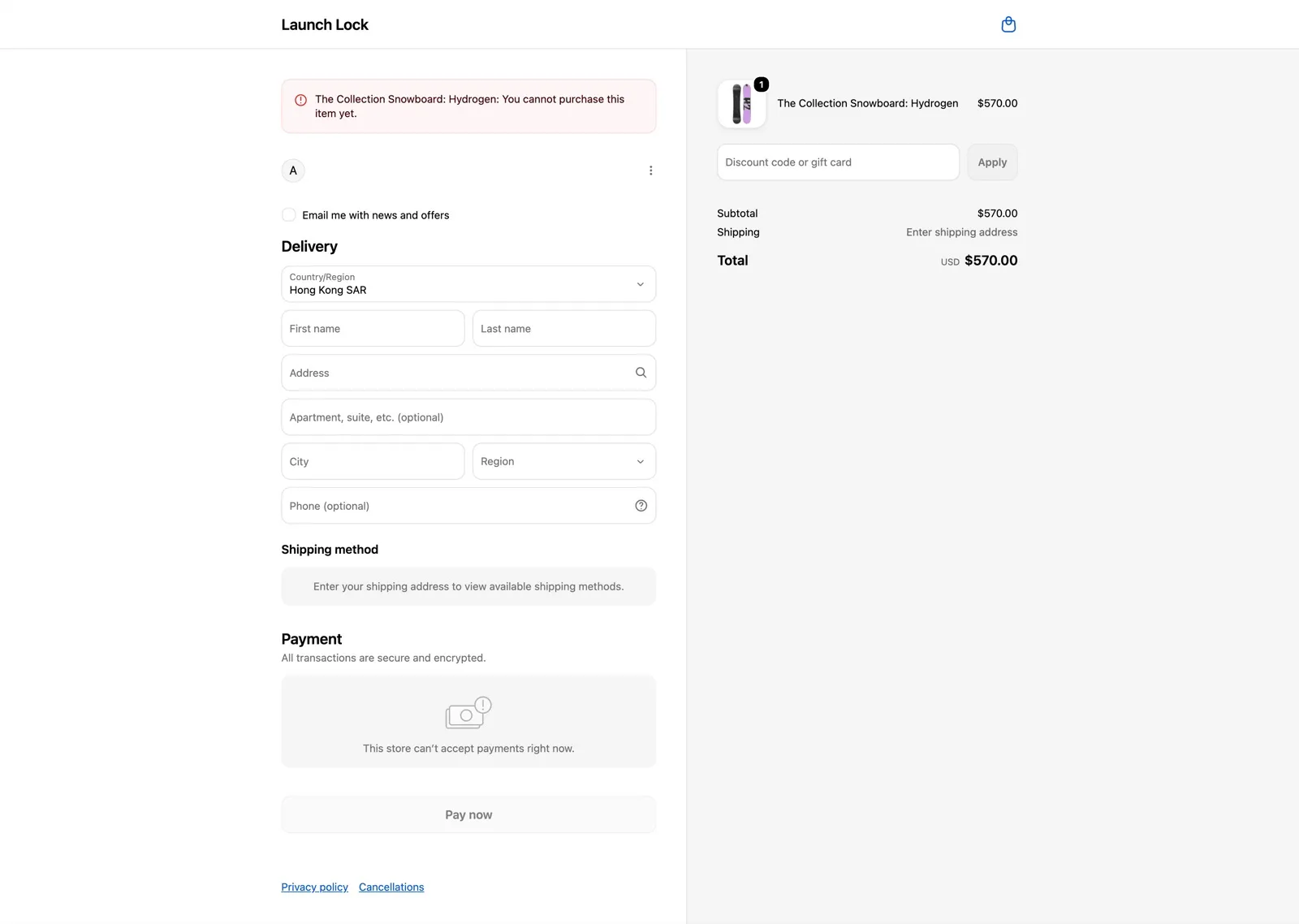
Checkout names the product first, then the message from the rule set.
The customer sees English instead of their language
Section titled “The customer sees English instead of their language”Launch Lock shows a language only when the code matches exactly. There is no “close enough”: a Simplified Chinese (zh-CN) storefront does not pick up Traditional Chinese (zh-TW) text.
- Settings → Storefront languages lists that language with the same code Shopify uses for it. Add it if it is missing.
- The language is published in Shopify Admin → Settings → Languages. Unpublished languages are never shown to customers, so nothing to fix in Launch Lock.
- Open each rule set and Save & compile (or Recompile all products) after changing the language list. Products keep the old text until they are recompiled.
- A field left blank in that language shows the English text on purpose. Fill the field if you want a translation.
Point of sale is not gated
Section titled “Point of sale is not gated”Correct. Shopify does not run this check on POS. Staff can sell a gated product in person. Online checkout, including draft-order checkout, still enforces the rule.
Sent to the plan page
Section titled “Sent to the plan page”Expected when you have not approved a plan yet. Approve the plan Shopify shows, then open Apps → Launch Lock again. See Billing.
Sign in required
Section titled “Sign in required”The staff session lasts about 24 hours. Open Apps → Launch Lock from the store you want. Rule sets are still there. Signing in does not reset them.
If Settings says it cannot read validations because of access, use Sign out at the bottom of Rule sets and open the app from Admin again so the store can re-approve access.
Install on the Shopify App Store