
Settings
Settings applies to the whole store. Who can buy, the messages, and which products are limited are set on each rule set.
Open it from Rule sets → Settings.
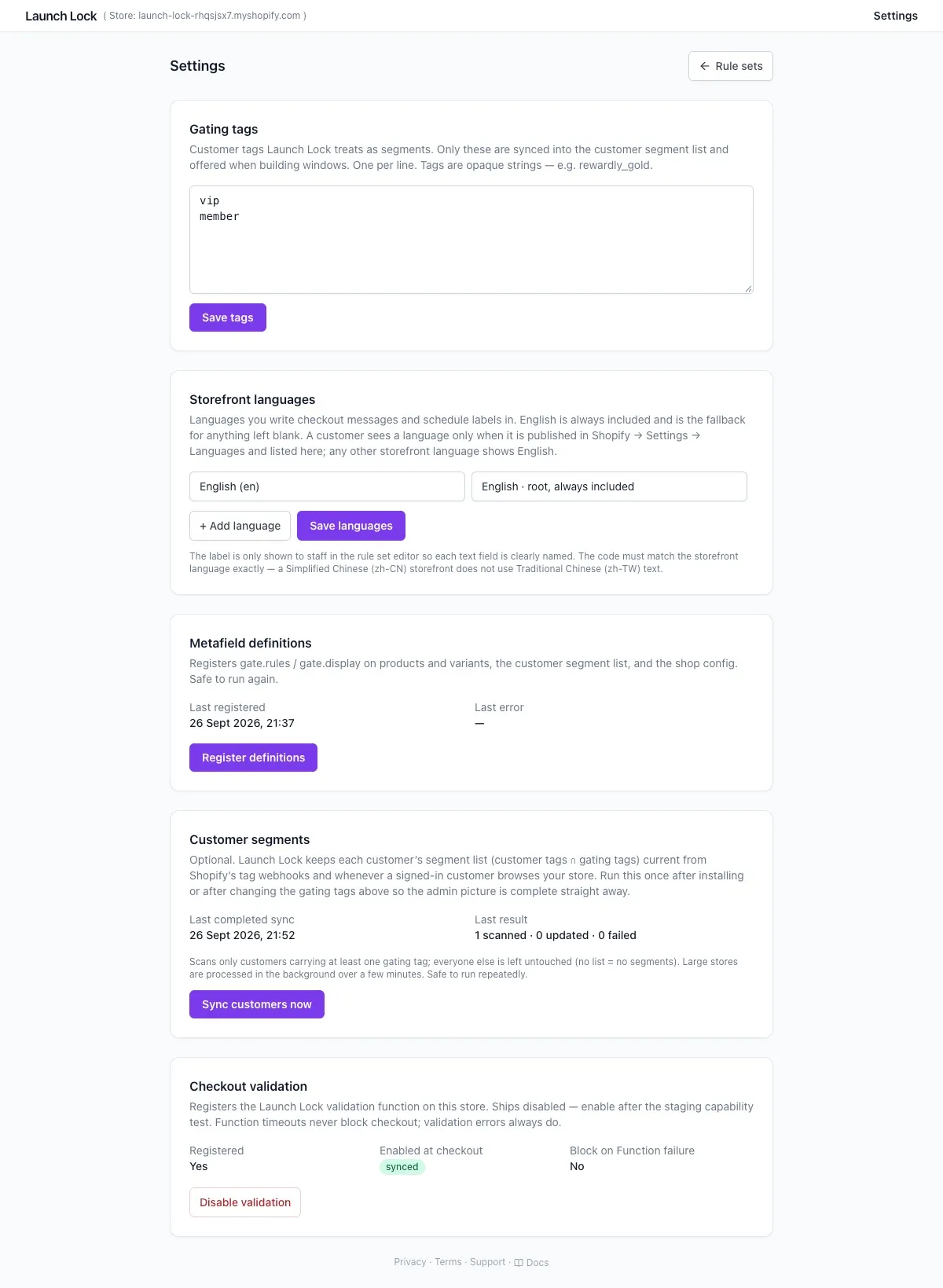
Gating tags, one per line, and Customer segments with Sync customers now.
Gating tags
Section titled “Gating tags”These are the customer tags Launch Lock is allowed to use. Type one tag per line, then click Save tags.
- A purchase window can only use tags from this list.
- Launch Lock only keeps the tags that are both on the customer and on this list. Any other tag on the customer is ignored.
Goldandgoldare different tags.
After you change this list, click Sync customers now. That updates customers who already have one of these tags. Later, when you add or remove a tag on a customer in Shopify Admin, Launch Lock updates that customer on its own.
Storefront languages
Section titled “Storefront languages”These are the languages you can write checkout messages and the purchase schedule in. English is always included. If you leave a translation blank, the customer sees the English text.
- Click Add language, pick the language, and type a name your team will recognise, for example
繁體中文. Customers never see that name. - Click Save languages. Then open each rule set and click Save & compile, so the new language is saved onto your products.
- If you remove a language, products drop it the next time you save a rule set. The words you already typed are kept. Add the language again and they come back.
A customer sees a language only when two things are true: it is published in Shopify Admin → Settings → Languages, and it is listed here. The language must match. A Simplified Chinese store does not show Traditional Chinese text. Any other language shows English.
You do not have to translate every box. A blank box shows the English text. Traditional Chinese already has text for the five checkout messages, until you replace it.
Customer segments
Section titled “Customer segments”Sync customers now finds customers who already have at least one gating tag, and saves those tags so checkout can read them. Customers with none of the gating tags are skipped.
- The button stays off until you have saved at least one gating tag.
- The page shows Syncing… and refreshes until it finishes. You can leave the page.
- On a large store the sync keeps going in the background. If it stops, click Resume sync.
- You can run it again. The page shows how many customers were checked, updated, or failed.
You do not need this every time you tag someone new. Use it after you install, and again after you change the gating tag list.
Turn on the Launch Lock segment sync app embed so a signed-in customer is updated while they browse, even if they never open the limited product. See Theme editor.
Metafield definitions
Section titled “Metafield definitions”These are set up when you install. Click Register definitions only if Last error is not empty. If the store is working, leave this alone.
Checkout validation
Section titled “Checkout validation”This switch blocks a purchase in the cart and at checkout.
| What you see | Meaning |
|---|---|
| Enable validation | Checkout is not checking the rules yet. The product page can still hide the buy button. |
| Disable validation | Checkout is checking the rules. A customer who is not allowed yet cannot buy. |
| Block on Function failure: No | If Shopify is briefly too slow to check the rules, a normal order still goes through. A customer who fails a rule is still blocked, and they see your message. |
Leave this off while you add the theme blocks and check the product page. Turn it on before customers can buy.
Orders you create as drafts are checked. Sales at the till are not.
Install on the Shopify App Store
- Rule sets
- Troubleshooting — a customer with the right tag is still blocked