
Theme editor
The product page is two theme blocks plus one app embed. Checkout enforcement does not depend on the blocks. The blocks are what the customer reads, and they hide or dim the theme’s buy button.
The Setup card on Rule sets deep-links each step. You can also open Online Store → Themes → Customize yourself.
Where to put the blocks
Section titled “Where to put the blocks”On the product template:
- Launch Lock schedule in the product info, where you want the dates.
- Launch Lock gate where the buy button lives.
A product with no rule set renders nothing. A customer who is allowed to buy sees the theme’s own button. The gate draws a control only when purchase is blocked.
Both blocks on the product template. The gate sits with the buy button, the schedule sits in the product info, then the theme is saved.
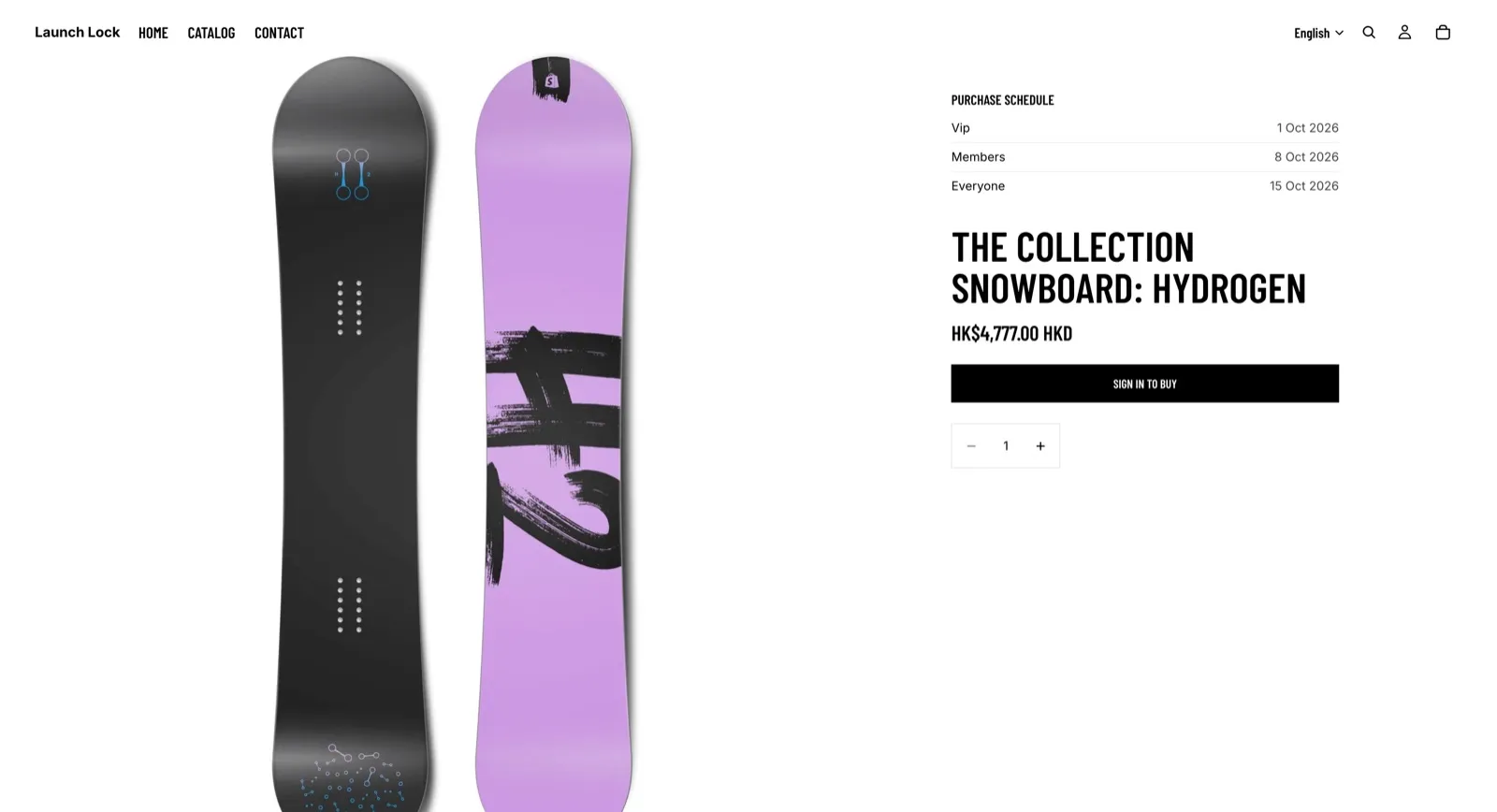
Logged out, the schedule shows the rows and the gate replaces the buy button with Sign in to buy.
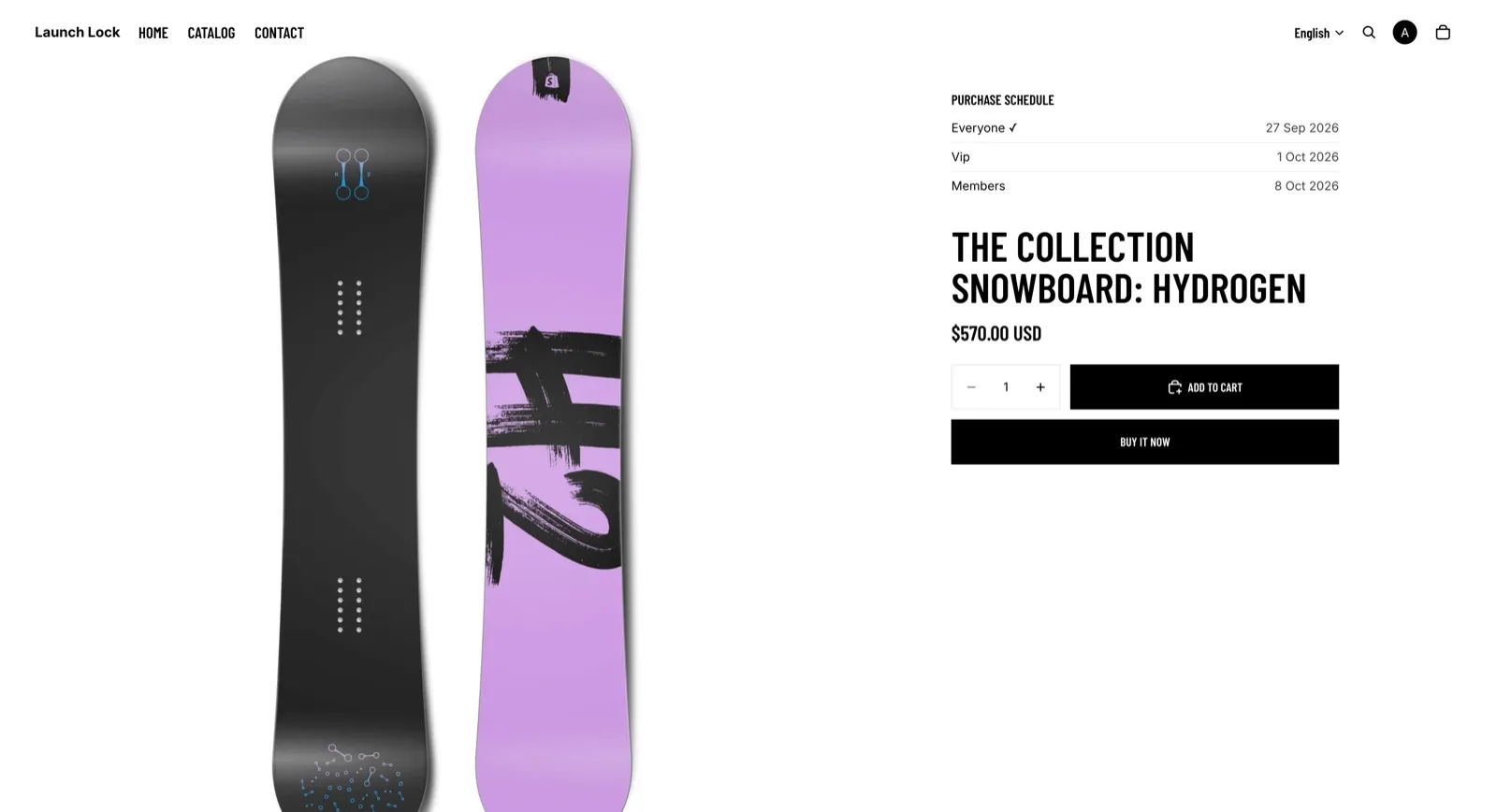
Signed in, with the window open. The theme buy button is back and the schedule stays visible.
| Customer | Gate | Schedule |
|---|---|---|
| Logged out, sign-in required | Buy button hidden. Link uses your Sign-in required message. Default: Sign in to buy. | Shown |
| Signed in, too early | Buy button dimmed. No date on the button. | Shown. This is the “when can I buy?” text. |
| Signed in, window open | Theme buy button | Shown only if Show is always |
| Past the last day to buy | Buy button hidden. Your Past deadline message. Default: Registration closed. | Shown if Show is always or only while locked |
Launch Lock gate
Section titled “Launch Lock gate”| Setting | Use |
|---|---|
| Product | Filled in by the theme. Leave it on the current product. |
| Buy button selector | CSS selector for this theme’s add-to-cart control. Leave the default unless the wrong button is dimmed, or none is. |
| Preview state (theme editor only) | Forces a state while you are customizing. No effect on the live storefront. |
Preview values: Auto (real evaluation), Logged out, Signed in, window closed, Past deadline, Open.
The default selector covers the usual product-form submit button and the dynamic checkout button. Clearing the field uses that same default. A selector that matches nothing leaves the buttons alone and does not break the page.
The hide and the dim apply only inside the section that contains the block. A featured product elsewhere on the page is left as it is.
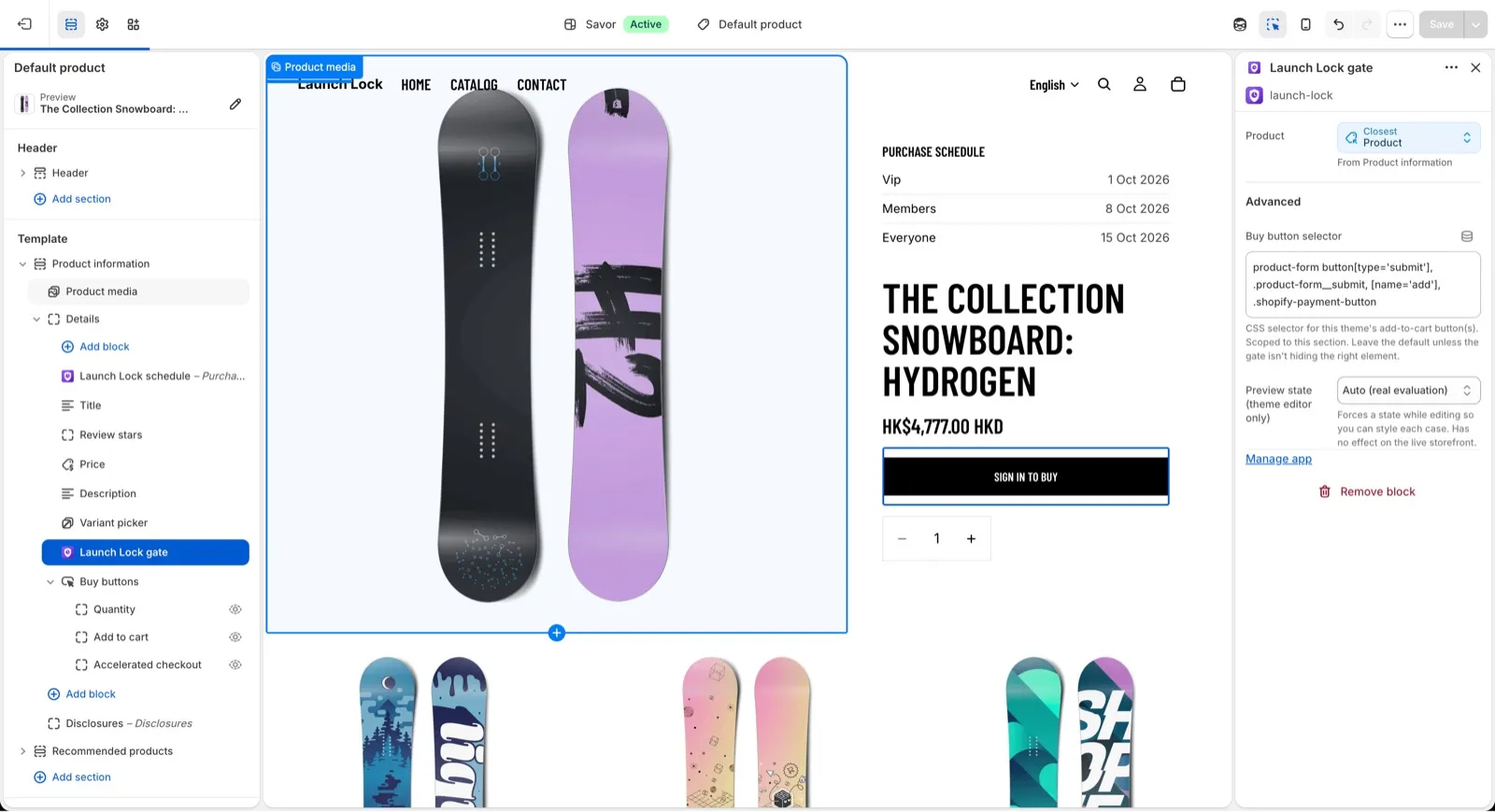
Launch Lock gate selected on the product template. The preview shows Sign in to buy.
Launch Lock schedule
Section titled “Launch Lock schedule”| Setting | Default | Use |
|---|---|---|
| Heading | Purchase schedule | Title above the rows. |
| Date format | %-d %b %Y |
How each Opens on date is printed. %Y-%m-%d prints 2026-08-15. |
| Preview state (theme editor only) | Auto | Matters when the rule set Show is only while locked. |
The row text itself is edited on the rule set, not in the theme. See Product page schedule.
Launch Lock segment sync
Section titled “Launch Lock segment sync”Theme settings → App embeds → Launch Lock segment sync. Turn it on and save.
There is nothing to see on the page. For a signed-in customer it refreshes their segment list, including on pages that are not the gated product. Checkout then sees the tags you configured, even if they reached the cart from somewhere else.
The Setup card button is Enable app embed.
Install on the Shopify App Store
- Rule sets — the sentences and the schedule rows
- Settings — enable checkout validation when the page looks right
- Troubleshooting — the buy button is still visible